Full Features
Organise tasks, track progress, and collaborate seamlessly—right where your teams already work.
Top Project Management Software Features for Streamlined Workflow
Building and completing projects one step at a time!
1 Signing Up/Installing
Access Huddo Boards directly in the cloud using Microsoft, HCL Connections, LinkedIn, Apple ID, Gmail, and Facebook.
Download Huddo Boards from the Microsoft app store.
Install ‘Activities +’ from the HCL Connections Component Pack and upgrade to Huddo Boards directly from A+.
Download the full Huddo Boards application to run on-premise in both HCL Connections and Microsoft 365.
Connect multiple login methods & profiles under one user ID.
Create hybrid systems connecting users from different providers, internally and externally.

2 Starting Projects & Todos
Create a new project Board from Quick Templates.
Adopt a new project Board from our extensive Public Template Library.
Create a new project from a blank canvas and simply type and click ‘ENTER’ on your keyboard to create tasks.
Copy and paste tasks from Excel to create multiple tasks.
Copy and paste tasks from bulleted text to create multiple tasks.
Create a project from an existing Board by using Copy Board or creating a reusable Custom Template.


3 Project Features (starting)
Create Board Descriptions to help explain its purpose.
Set Board Start and Due Dates to stick to project deadlines.
Add a Board Tag to help find, filter, and group projects in your Boards dashboard.
Upload documents or Attach Links relating to the overall project, i.e. documentation and guides.
Add Board Comments to discuss the project on the highest level, and @mention colleagues to write to specific users.
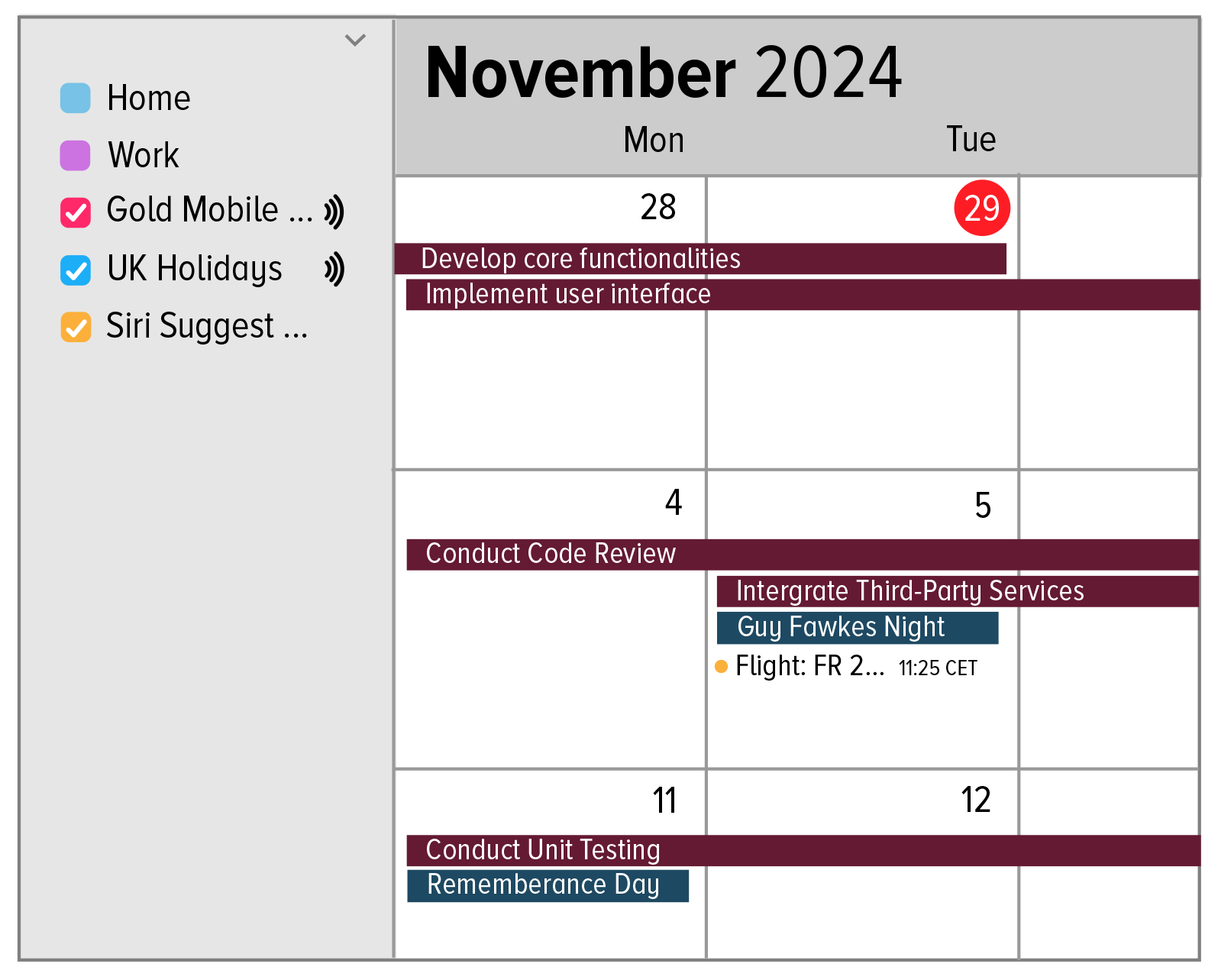
Create iCal Feeds to link project and task start and due dates to your other calendar applications.

4 Task/Note Features
Create different cards including Tasks (with Tickboxes) or Notes (that are purely informational).
Convert Tasks into Notes or Notes into Tasks.
Add task Descriptions and upload documents / Attach Files to provide contextual information.
Set task Start and Due Dates and apply Colour Labels to differentiate tasks and set priorities.
Create Subtasks to break down tasks into smaller actions.
Create Card Themes to create unique card titles to add further variation to the Board structure.

5 Collaborating on Tasks
Invite Members to your projects, with internal directories (Microsoft & HCL Connections) and invite internal/external collaborators via email.
Set Member Permissions to reader, author, editor, or owner to manage the security of data.
Assign Members to tasks from the toolbar and within the expanded card options window.
Add task Comments with @Mentions to write messages to individual users.
Assign multiple members and set Task Completion Rules to ‘all must complete’ and ‘any can complete’.

6 Organising & Prioritising
Drag-and-drop cards to new columns or Move Cards to new locations from the card options window.
Apply unlimited Colour Labels, including colours by HEX code, and name labels for context.
Apply Quick Filters from the toolbar for member assignment and colour label.
Set Advanced Filters to show/hide tasks by assignment, colour, if completed, if lists are empty, and to match all filters.
Aggregate views in Kanban, Timeline, and Activity view by member assignments, dates, and colour labels.

7 Sticking to Deadlines
Set project, task, and subtask start and due dates with built-in app prompts on deadlines due today and overdue.
Set Task Dependencies to enforce task order and support related project milestones, including making a task dependent on all subtasks.
Manage task Notifications and reminders to keep projects on track, including what you want to be reminded of.
Get notifications and updates sent to Microsoft Teams and HCL Connections activity feeds.
View project timelines and aggregated views by date to visualise project progress.

8 Project Overviews
Aggregate Kanban and Activity view by assignments, dates, and colours to plan and share resources.
Aggregate Timeline view by assignment, and colour to check product health against your deadlines.
Easily convert subtasks into tasks, tasks into lists and continuously reassign cards with drag-and-drop functionality in MindMap view.
Export PDF’s of project views to share with stakeholders outside of Huddo Boards.
Refer to Recent Updates to review an activity stream of project updates.

9 Project Features (finishing)
Reuse your Boards with the Copy Board feature and save time creating repeating projects.
Share developed Boards with other teams and Create Template from Board, including Roles to automatically add assignments with different team members.
Complete Boards to hide them from view and automatically move them to archive.
Archive Boards which are informational only. Delete from archive if Boards are no longer needed.
Use Board Tags and Labels to support the search of historical projects and archives.

10 Boards Dashboards
See Usage Statistics on your various ‘Huddles’, plus Information on members, groups, plans, and huddle options.
Add Board Colours and Labels to projects to help you filter and find key Boards or create themes and groups of projects.
View your [My] Boards, public and archived Boards.
View your Boards by recent, colours, labels, groups, roles, and organisations.
Order your Boards by last accessed, updates, name, and due date.
Access and edit Custom Templates.

11 Todos across Projects
View all cards assigned to you or created by you in either Kanban view or Activity view with Todos.
Filter Boards to show tasks only for certain Boards, hiding tasks from other projects.
Capture all tasks without due dates, or overdue and reset dates with drag-and-drop functionality, moving into columns for today, tomorrow, later this week, etc.
Access individual tasks, by clicking on task name, and access corresponding projects by clicking on the Board name.
Create an iCal Feed from your Todos, syncing all task due dates to your preferred calendar application.

12 Admin Controls & Settings
View Subscriptions and manage User licences, administrators, and content ownership.
Enable Configurations, including invite by email, Board file uploads, create cards with ENTER key, show presence indicators, and guest promotion requests.
Set Boards Themes to light, dark, or system default.
Enable Email Notifications, including added to Board, new assignment, new comment, new mention, reminders for due dates, and new account creation.
Access Advanced Options with Huddo Boards API.

DARK MODE

No credit card is required to start | Cancel your subscription at any time
STANDARD
Includes
200 Tasks
20 Boards
100MB Data
Unlimited Users
All 4 Project Views
All Board and Card Features
Integrations
PERFECT FOR ONE PERSON
FOR ONE BIG PROJECT
FREE
PROFESSIONAL
Includes
Unlimited Tasks
Unlimited Boards
Unlimited Data
Name and Unnamed Licenses
All Project Views
All Board and Card Features
Integrations
PERFECT FOR SMALL TEAMS
$6.49
ENTERPRISE
Includes
All of the Professional
Implementation Role Out
Dedicated Support
Exclusive Discounts
Fast Track Feature Requests
PERFECT FOR CROSS-DEPT TEAMS &
LARGE CORPORATIONS
Talk to Sales
Huddo Boards embeds into your digital workspace | Microsoft 365, HCL & in the cloud
All four project views and all features | Get 200 Tasks and 20 Boards for FREE

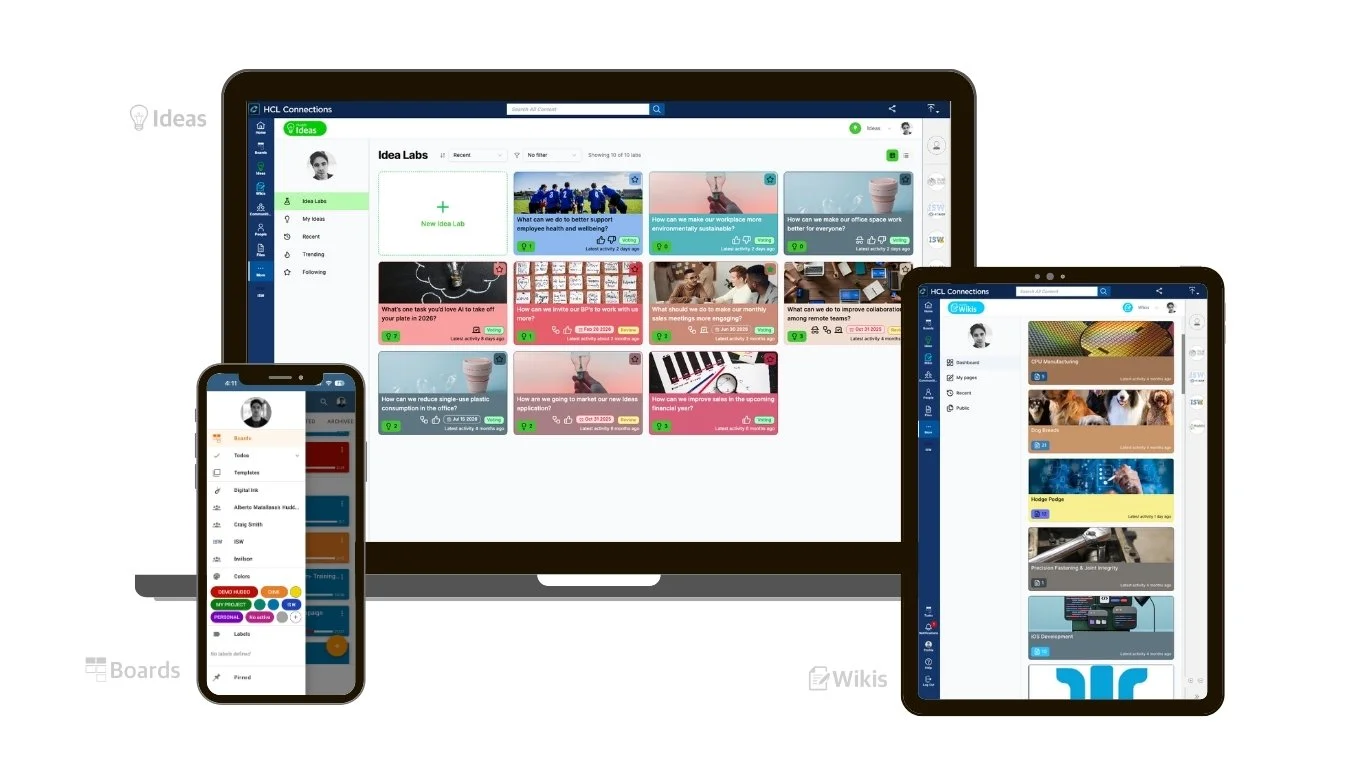

Huddo Suite is developed and supported by ISW, an Australian technology company with over 26 years of experience delivering enterprise software and digital workplace solutions.

Project Management Tool

Innovation & Ideation Tool

Knowledge Management Tool
More of Huddo Suite